The key facts at a glance
- LinkedIn post: 3,000 characters
- Feed preview before 'see more': around 210 characters
- Profile headline: 220 characters
- About / Summary section: 2,600 characters
- Comment: 1,250 characters
- Direct message: 8,000 characters
- Check your LinkedIn character count instantly →
If you write professional content for LinkedIn, knowing the LinkedIn character limit saves you from awkward cutoffs, broken formatting, and posts that look fine in your editor but feel messy in the feed. The full limit matters, but the preview cutoff matters even more: your opening lines decide whether people keep reading or scroll past.
LinkedIn limits apply to posts, headlines, About sections, company pages, ads, comments, and messages. This guide gives you the practical limits to know and shows how to check your copy before publishing.
Quick Answer: LinkedIn Character Limits
Use this table as a fast reference before posting or updating your profile.
| LinkedIn area | Character limit |
|---|---|
| Standard LinkedIn post | 3,000 characters |
| Feed preview before “see more” | Around 210 characters |
| Profile headline | 220 characters |
| About / Summary section | 2,600 characters |
| LinkedIn article | Around 125,000 characters |
| Comment | 1,250 characters |
| Direct message | 8,000 characters |
| Company page description | 2,000 characters |
| LinkedIn ad intro text | 150 characters |
| LinkedIn ad headline | 70 characters |
| LinkedIn ad description | 100 characters |
These limits can change, and some areas may behave differently depending on device, format, account type, or LinkedIn updates. Spaces, line breaks, punctuation, and emojis all count as characters.
Maximum Limit vs. What People Actually See
The biggest mistake is focusing only on the maximum limit.
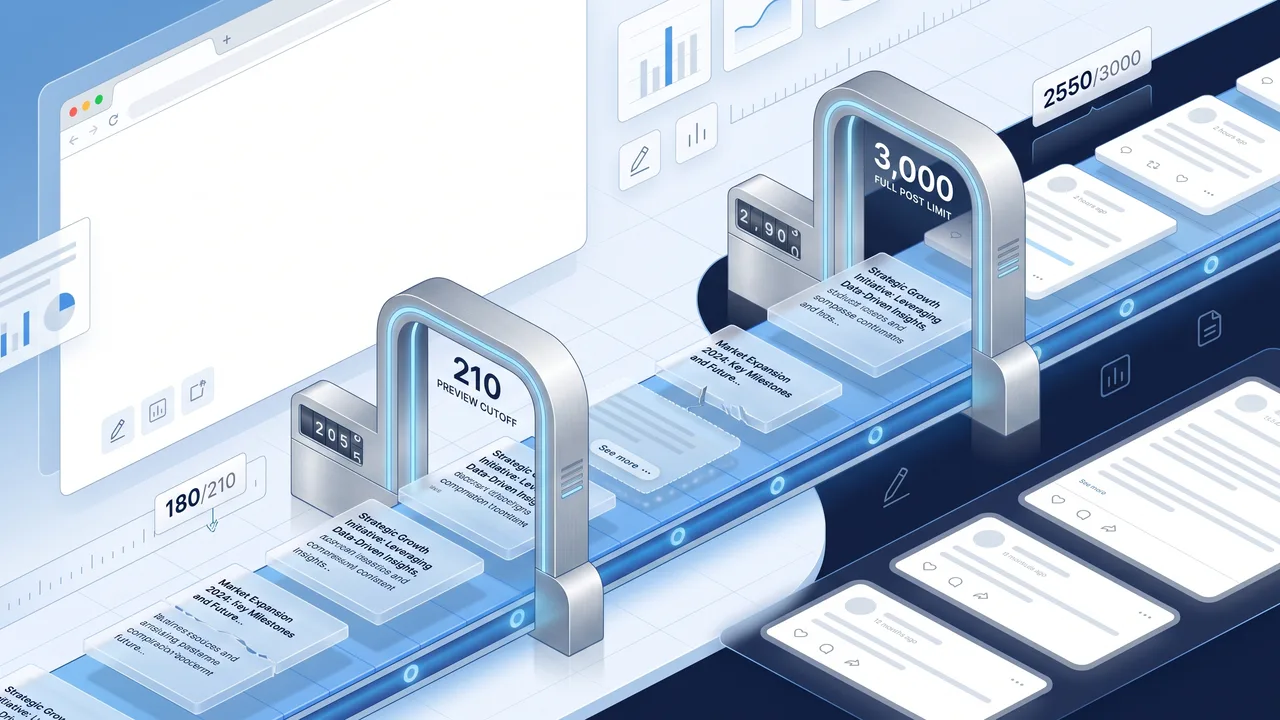
A LinkedIn post can currently be up to 3,000 characters, but most people will only see the first few lines before LinkedIn adds the “see more” link. That preview is usually around 210 characters, although the exact cutoff can vary depending on device, formatting, and line breaks.
That means your first 200 characters are more important than the remaining 2,800.
For example, this kind of opening is weak:
“I wanted to share some thoughts about my experience over the last few months and what I have learned from working with different teams across different projects.”
It takes too long to get to the point.
A stronger LinkedIn hook is shorter and more direct:
“I changed one thing in our client onboarding process, and response rates improved almost immediately. The surprising part: it had nothing to do with automation.”
That type of opening gives the reader a reason to click “see more.”
Use the TextLimits Limit Mode to set a custom 210-character limit when drafting your opening. Then use the full character counter to check the whole post before publishing.
LinkedIn Profile Limits
Your profile is not just a CV. It is often the first professional landing page someone sees when they search your name, check your comment, or receive your connection request.
LinkedIn Headline Limit: 220 Characters
Your LinkedIn headline can currently use up to 220 characters.
A basic headline might be:
“Marketing Manager at ABC Company”
That is clear, but it wastes space.
A stronger headline uses the limit to explain who you help, what you do, and why it matters:
“B2B Marketing Strategist helping SaaS teams turn technical products into clear messaging, stronger positioning, and better-qualified inbound leads”
You do not have to use all 220 characters, but you should use enough to make your value clear.
Before saving your headline, paste it into the TextLimits character counter. This helps you avoid trimming it inside LinkedIn, where editing is slower and less comfortable.
LinkedIn About Section Limit: 2,600 Characters
The LinkedIn About section, sometimes called the summary, can currently be up to 2,600 characters.
This is enough space to explain:
- who you are
- what you do
- who you help
- your main experience
- your proof or results
- how people should contact you
The danger is not usually running out of space. The danger is writing one large block of text that nobody wants to read.
Use short paragraphs. Add line breaks. Put the strongest information near the top.
A useful About section structure:
- Start with a clear positioning sentence.
- Explain the problems you solve.
- Add proof, experience, or credibility.
- Mention your main services, skills, or focus areas.
- End with a simple next step.
After writing your About section, check both the character count and readability. If the text was copied from a Word document, PDF, or old resume, clean extra spaces and broken line breaks before pasting it into LinkedIn.
LinkedIn Content Limits
LinkedIn content includes posts, articles, comments, and company updates. Each format has a different job.
LinkedIn Post Character Limit: 3,000 Characters
A standard LinkedIn post can currently be up to 3,000 characters.
That is enough for a short story, a case study, a lesson learned, or a professional opinion. But longer does not automatically mean better.
A practical structure for a LinkedIn post:
- Hook: first 1–2 lines
- Context: why the topic matters
- Main point: the lesson, idea, or story
- Supporting details: examples or bullets
- Closing: question, takeaway, or next step
For example:
“Most content problems are not writing problems. They are clarity problems.
Before rewriting a page, I now ask three questions:
- Who is this for?
- What should they understand?
- What should they do next?
The writing usually gets easier after that.”
This type of post is short, structured, and easy to scan.
Use the TextLimits character counter before posting so you know whether your post is close to the 3,000-character limit. Use Limit Mode if you want to draft a tighter version.
LinkedIn Article Character Limit: Around 125,000 Characters
LinkedIn articles allow much longer content, currently around 125,000 characters.
This is useful for:
- long-form thought leadership
- detailed guides
- industry analysis
- company announcements
- founder essays
- professional tutorials
Even with a high limit, structure matters. Use headings, short paragraphs, and a clear introduction. If your article is long, use the TextLimits reading time calculator to estimate how long it will take to read.
A simple line such as “Estimated reading time: 4 minutes” can make long content feel easier to start.
LinkedIn Comment Character Limit: 1,250 Characters
LinkedIn comments can currently be up to 1,250 characters.
That is longer than many people expect, but comments still work best when they are focused. A strong comment adds something useful rather than repeating the original post.
Good comments often do one of four things:
- add a practical example
- ask a thoughtful question
- politely challenge an assumption
- summarize a useful lesson
If your comment is turning into a full post, it may be better to publish it separately and link the idea back to the discussion.
LinkedIn Messages and Networking Limits
LinkedIn direct messages can currently be up to 8,000 characters, but most people should not use anything close to that.
For networking, shorter is usually better.
A good connection or outreach message should be:
- specific
- polite
- easy to answer
- clearly relevant to the person receiving it
Example:
“Hi Sarah, I liked your post about B2B onboarding emails. I’m working on a similar problem and would enjoy following your updates here.”
That is much stronger than a long generic pitch.
If you are writing a recruiter message, sales message, or partnership note, draft it outside LinkedIn first. Use TextLimits to check length, clean spacing, and make sure the message is readable before sending.
LinkedIn Ads and Company Page Limits
LinkedIn ads have stricter limits because they need to work inside small placements.
Common LinkedIn ad limits include:
- Introductory text: 150 characters
- Headline: 70 characters
- Description: 100 characters
With ads, every character matters.
A weak ad headline:
“Professional Services for Companies That Want to Improve Their Marketing Strategy”
A tighter version:
“Improve Your B2B Marketing Strategy”
The second version is shorter, clearer, and easier to read quickly.
Company page descriptions can currently use up to 2,000 characters. That is enough to explain what the company does, who it serves, and why it is credible. Avoid turning the description into a brochure. Keep it clear and searchable.
How to Check LinkedIn Character Count Before Posting
The safest workflow is simple:
- Draft your LinkedIn text outside LinkedIn.
- Paste it into TextLimits.
- Check characters with spaces.
- Use Limit Mode for specific limits, such as 210, 220, or 3,000 characters.
- Clean extra spaces or broken line breaks if needed.
- Paste the final version into LinkedIn.
This is especially useful for professional content because LinkedIn drafts may include sensitive business information, client stories, hiring messages, or internal ideas. A browser-based tool helps you check the text without turning the process into a complicated workflow.
Common LinkedIn Character Limit Mistakes
The most common mistake is writing to the maximum limit instead of writing for the reader.
Other common mistakes include:
- ignoring the “see more” cutoff
- putting the main point too late
- wasting the headline on only a job title
- writing the About section as one large block
- using too many hashtags
- forgetting that spaces and emojis count
- pasting messy text from PDFs or documents
- not checking the mobile preview
- making ads too vague because the text is too long
The goal is not to use every available character. The goal is to make every character useful.
Best Practical Limits to Remember
If you only remember a few numbers, remember these:
- 210 characters: useful target for the visible post hook
- 220 characters: profile headline
- 3,000 characters: standard post
- 2,600 characters: About section
- 1,250 characters: comment
- 70 characters: ad headline
These numbers cover most everyday LinkedIn writing tasks.
FAQ
What is the LinkedIn post character limit?
A standard LinkedIn post can currently be up to 3,000 characters. Spaces, punctuation, line breaks, and emojis count toward this limit.
When does LinkedIn show the “see more” link?
LinkedIn feed previews usually cut off around 210 characters, but the exact point can vary depending on device, formatting, and line breaks.
What is the LinkedIn headline character limit?
The LinkedIn profile headline can currently be up to 220 characters.
What is the LinkedIn About section character limit?
The LinkedIn About or Summary section can currently be up to 2,600 characters.
Do spaces count as characters on LinkedIn?
Yes. Spaces count as characters on LinkedIn, as do line breaks, punctuation, and emojis.
How long can a LinkedIn article be?
LinkedIn articles can be much longer than posts, currently around 125,000 characters.
What is the LinkedIn comment character limit?
LinkedIn comments can currently be up to 1,250 characters.
How do I check my LinkedIn character count?
Paste your draft into the TextLimits character counter to check characters, words, spaces, and limits before publishing. Your text is processed in your browser and never sent to any server.
Try it free
Check your LinkedIn character count
Paste your LinkedIn text into TextLimits to count characters, words, and check against the 3,000-character post limit. Private, instant, no login.
Check your LinkedIn character count →